Cookies required to continue
In order to continue, you need to enable cookies on your web browser. Please follow the simple instructions below.
If you are seeing this message repeatedly please make sure of the following:
- You are completely logged out of BusinessesForSale.com on all other devices.
-
You completely close your browser after clearing your cookies.
Sometimes even though you have closed the browser in carries on running in the background. E.g.
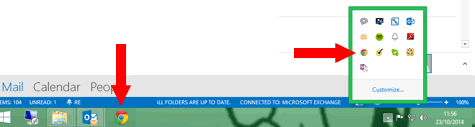
- If this doesn’t work please get in touch and tell us which operating system and browser you are using and we will do everything we can to fix it. E.g. Windows 8, chrome version 38.
If you are seeing this message for the first time:
Enabling changes to Firefox:
- At the top of the Firefox window, click on the Firefox button and then select Options.
- Select the Privacy panel.
- Set Firefox will: to Use custom settings for history.
- Check mark Accept cookies from sites to enable Cookies, and uncheck it to disable them.
- If you are troubleshooting problems with cookies, make sure Accept third party cookies is also not set to Never. For more information, see Disable third-party cookies in Firefox to stop some types of tracking by advertisers.
- Choose how long cookies are allowed to be stored:
- Keep until: they expire: Each cookie will be removed when it reaches its expiration date, which is set by the site that sent the cookie.
- Keep until: I close Firefox: The cookies that are stored on your computer will be removed when Firefox is closed.
- Keep until: ask me every time: Displays an alert every time a website tries to send a cookie, and asks you whether or not you want to store it.
- Click OK to close the Options window.
Enabling Changes to Chrome:
- Click the Chrome menu on the browser toolbar.
- Select Settings.
- Click Show advanced settings.
- In the "Privacy" section, click the Content settings button.
- In the "Cookies" section, you can change the following cookies settings:
- Delete cookies
- Block cookies by default
- Allow cookies by default
- Keep cookies and site data by default until you quit your browser
- Make exceptions for cookies from specific websites or domains
Enable Changes to Safari:
If you are concerned about cookies, you can set how you want Safari to handle them.
Important: Changing your cookie preferences or removing cookies in Safari may change or remove them in other applications, including Dashboard.
- Open Safari if it is not already open.
- Choose Safari > Preferences, and then click Privacy.
- In the “Block cookies” section, specify if and when Safari should accept cookies from websites. To see an explanation of the options, click the Help button (question mark).
- If you want to see which websites store cookies on your computer, click Details.
If you set Safari to block cookies, you may need to temporarily accept cookies to open a page. Repeat the above steps, selecting Never. When you’re done with the page, block cookies again, and then remove the page’s cookies.
Enable changes to IE 10:
To delete cookies in Internet Explorer
- Open Internet Explorer for the desktop.
- Tap or click the Tools button, point to Safety, and then tap or click Delete browsing history.
- Select the Cookies check box, and then tap or click Delete.
To block or allow cookies
- Open Internet Explorer for the desktop.
- Tap or click the Tools button, and then tap or click Internet options.
- Tap or click the Privacy tab, and then, under Settings, move the slider to the top to block all cookies or the bottom to allow all cookies, and then tap or click OK.
Blocking cookies might prevent some pages from displaying correctly.
Enable changes to IE 9:
To delete cookies in Internet Explorer
- Open Internet Explorer.
- Click the Tools button, point to Safety, and then click Delete browsing history.
- Select the Cookies check box, and then click Delete.
To block or allow cookies
- Open Internet Explorer.
- Click the Tools button, and then click Internet options.
- Click the Privacy tab, and then, under Settings, move the slider to the top to block all cookies or the bottom to allow all cookies, and then click OK.
Blocking cookies might prevent some pages from displaying correctly.
Enable changes to IE 8:
To delete cookies in Internet Explorer
- Open Internet Explorer.
- Click the Safety button, and then click Delete Browsing History.
- Select the check box next to Cookies.
- Select the Preserve Favourites website data check box if you don't want to delete the cookies associated with websites in your Favourites list.
- Click Delete.
Enable changes to IE 7:
You can configure your privacy settings in Internet Explorer 6 by clicking Internet Options on the Tools menu, and then clicking the Privacy tab.
NOTE: An administrator can customize your privacy settings and remove the Privacy tab from the interface in the Internet Options dialog box. If the Privacy tab is not available, contact your administrator, or see the "Information for Advanced Users and IT Professionals" section.
These settings replace the cookies settings on the Security tab in Internet Explorer 4 and 5 (and the Advanced tab in Internet Explorer 3). The Privacy settings slider has six settings: Block All Cookies, High, Medium High, Medium (default level), Low, and Accept All Cookies.
The following Privacy settings are available with the slider:
- Block All Cookies: Cookies from all Web sites will be blocked, and existing cookies on your computer cannot be read by the Web sites that created them. Per-site privacy actions do not override these settings.
- High: Blocks cookies that do not have a compact privacy policy or that have a compact privacy policy which specifies that personally identifiable information is used without your explicit consent. Cookies that were already on your computer before you installed Internet Explorer 6 are leashed (restricted so that they can only be read in the first-party context). Per-site privacy actions override these settings.
- Medium High: Blocks third-party cookies that do not have a compact privacy policy or that use personally identifiable information without your explicit consent. Blocks first-party cookies that have a compact privacy policy which specifies that personally identifiable information is used without your implicit consent. First-party cookies that do not have a compact privacy policy and cookies that were already on your computer before you installed Internet Explorer 6 are leashed (restricted so that they can only be read in the first-party context). Per-site privacy actions override these settings.
- Medium (default level): Blocks third-party cookies that do not have a compact privacy policy or that have a compact privacy policy which specifies that personally identifiable information is used without your implicit consent. First-party cookies that have a compact privacy policy which specifies that personally identifiable information is used without your implicit consent are downgraded (deleted when you close Internet Explorer). First-party cookies that do not have a compact privacy policy are leashed (restricted so that they can only be read in the first-party context). Cookies that were already on your computer before you installed Internet Explorer 6 are also leashed. Per-site privacy actions override these settings.
- Low: First-party cookies that do not have a compact privacy policy are leashed (restricted so that they can only be read in the first-party context). Cookies that were already on your computer before you installed Internet Explorer 6 are also leashed. Third-party cookies that do not have a compact privacy policy or that have a compact privacy policy which specifies that personally identifiable information is used without your implicit consent are downgraded (deleted when you close Internet Explorer). Per-site privacy actions override these settings.
- Accept All Cookies: All cookies will be saved on your computer, and existing cookies on your computer can be read by the Web sites that created them. Per-site privacy actions do not override these settings.
NOTE: Changing your privacy preferences does not affect the cookie acceptance policy for cookies that have already been set unless you move the slider to Accept All Cookies or Block All Cookies.
Internet Explorer displays a Privacy dialog box the first time that a cookie is restricted based on your privacy preferences. This dialog box appears only one time, unless you clear the Don't show this message again check box. The Privacy dialog box explains that a new status icon (the Privacy Report icon) is added to the status bar when you visit a Web site that does not meet your privacy preferences. You can double-click this icon to view a privacy report that explains how the Web site either has privacy practices that conflict with your preferences or has no published privacy policy. You can also view a privacy report for any site by clicking Privacy Report on the View menu.
NOTE: The Privacy slider works only in the Internet zone. All cookies are automatically accepted from Web sites in both the Local Intranet and Trusted zones, and all cookies are automatically blocked from Web sites in the Restricted zone.
For additional information, click the article number below to view the article in the Microsoft Knowledge Base: 282846 Privacy Tab Settings Only Affect Internet Zone
Per-Site Privacy Actions
You also have the option to define cookie management practices on a per-site basis. This overrides your default privacy preferences set with the slider for any sites that you add to the Per Site Privacy Actions dialog box, unless you move the slider to Accept All Cookies or Block All Cookies (in which case per-site privacy actions are ignored).
To override cookie handling for individual Web sites, click Edit on the Privacy tab to open the Per Site Privacy Actions dialog box. You can enter individual domains in the Per Site Privacy Actions dialog box by using a policy of either Block or Allow. Existing cookies from sites that you decide to block will be deleted. NOTE: If you move the slider on the Privacy tab to Accept All Cookies or Block All Cookies, the Edit button becomes unavailable because per-site privacy actions are ignored in these cases.
Advanced Privacy Settings
You can override automatic cookie handling for all Web sites in the Internet zone by clicking Advanced on the Privacy tab. You can use the Advanced Privacy Settings dialog box to configure first-party and third-party cookies to Accept, Block, or Prompt, with a check box to always allow session cookies.
NOTE: Existing cookies on your computer can still be read by the Web sites that created them even if you specify to block cookies in the Advanced Privacy Settings dialog box.